
Showing posts with label Windows. Show all posts
Showing posts with label Windows. Show all posts
Sunday, 20 March 2011
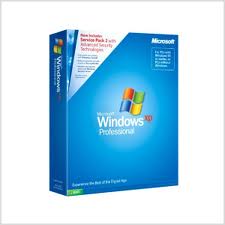
Make your Windows XP with Service Pack 2 geniune. Im not sure if this works on SP3.
Follow these step to Make your windows XP genuine
Step 1:
Click Start and then goto run and type ‘regedit’
Step 2:
Registry window will be opened, Then Go to
HKEY_LOCAL_MACHINE\SOFTWARE\MICROSOFT\Windows NT\CurrentVersion\WPAEvents\OOBETimer
and double click on it. Then change some of the value data to any thing.
Step 3:
Go to start > run > “%systemroot%\system32\oobe\msoobe.exe /a” (again, dont type the quotes)
Step 4:
The activation screen will come up, click on register over telephone, then click on CHANGE PRODUCT KEY, enter in this key: JG28K-H9Q7X-BH6W4-3PDCQ-6XBFJ.
Now you can download all the updates without activating, and the Genuine Microsoft Validation will irritate you No more.
Note: This works better after reformating
Or else do you want to download the crack for XP,XP home,XP 2 and Vista, I am placing it in a zip folder pls download it from the below link
http://rapidshare.com/files/71090926/Crack_For_XP.rar
Sunday, 20 March 2011 0
Friday, 18 March 2011

Insert the Windows DVD of Windows7/Vista in your system then follow these steps:
Boot off the Windows Vista DVD and then click Next at the first prompt:


The installation process will attempt to find your Vista installation directory. If there’s more than one in the list, select the correct one and then use the Next button again.

Click the first link for “Startup Repair”


bootrec /fixboot
At this point you should be able to reboot your computer, remove the DVD and everything should be working
Friday, 18 March 2011 0
Wednesday, 16 March 2011

How to Repair ur XP when it Show "access denied"
Click on Start, Search, All Files and Folders.
Right-click on file and choose properties
file location example: c:\windows\system32\undeleteablefile.exe
Open a Command Prompt window
Again Click on Start button, Run and type TASKMGR.EXE and press Enter to start Task manager
Click on the Processes tab, click on the process named Explorer.exe and click on End Process.
Minimize Task Manager.
Go back to the Command Prompt window and change to the directory where the file is located. To do this, use the CD command.
cd \windows\system32
Type DEL where is the file you wish to delete.
Example: del undeletablefile.exe
Go back to Task Manager
In Task Manager, click File, New Task and enter EXPLORER.EXE to restart the Windows shell.
Close Task Manager and the file is deleted.
Wednesday, 16 March 2011 0
Subscribe to:
Posts (Atom)


